How to Add Voice Responses to Toluna Start Surveys
Toluna Start runs a script on each question, and that is all Voice Capture needs. One block per open end puts a microphone above the answer box and writes the transcript into Toluna’s own field, where it shows up in Analyze like a typed answer.
Can Toluna Start collect voice responses?
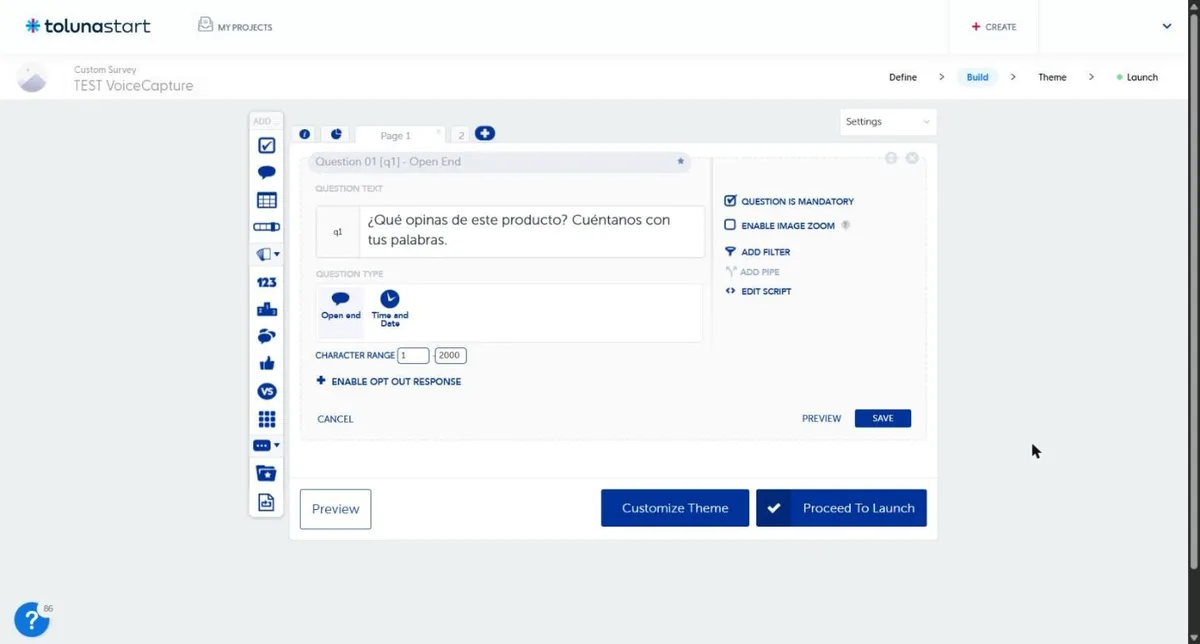
Yes, with a script on each open-ended question. Toluna Start does not have a voice question type of its own, but it lets you attach JavaScript to any question through ADD SCRIPT. Voice Capture uses that opening: the respondent gets a microphone button above the answer box, speaks, and the transcript is written into Toluna’s own answer field. Toluna then stores it and shows it in Analyze exactly like a typed answer. Typing keeps working for anyone who prefers it.
We tested this end to end on 24 October 2026 in a Toluna Start survey: spoken answers on two open-ended questions reached the Voice Capture dashboard and appeared as the questions’ answers in Toluna’s Analyze view. What we have not tested yet is listed at the end of this guide.
Where voice fits next to QProbe
Toluna Start already does something about thin open ends. Its QProbe feature uses generative AI to spot a vague answer and ask the respondent a tailored follow-up, and SmartCloud codes open ends into themes and sentiment. Both work on text. Toluna’s platform page lists neither a voice nor an audio answer type.
Voice works one step earlier. It does not rescue a short answer after the fact; it makes the first answer easier to give at length, because talking costs the respondent less than typing on a phone keyboard. In 7 client studies, 693 voice and 6,476 typed responses showed about 2× as many words in spoken answers. Respondents chose their mode, so this is an observed difference in length, not a controlled test (sample, exclusions and limitations).
Because the transcript lands in the normal answer field, Toluna’s own tools read it as an answer. We have confirmed it in Analyze; we have not yet run QProbe or SmartCloud on a voice answer, so treat that combination as untested.
What you need
- A Voice Capture project and its project key. The Free Trial includes 250 credits and asks for no card; each transcribed spoken answer uses one credit.
- A Toluna Start survey where you can open a question and use ADD SCRIPT.
- An open-ended question with a multi-line answer box. That is what we tested.
Step 1 — Paste the script on the question
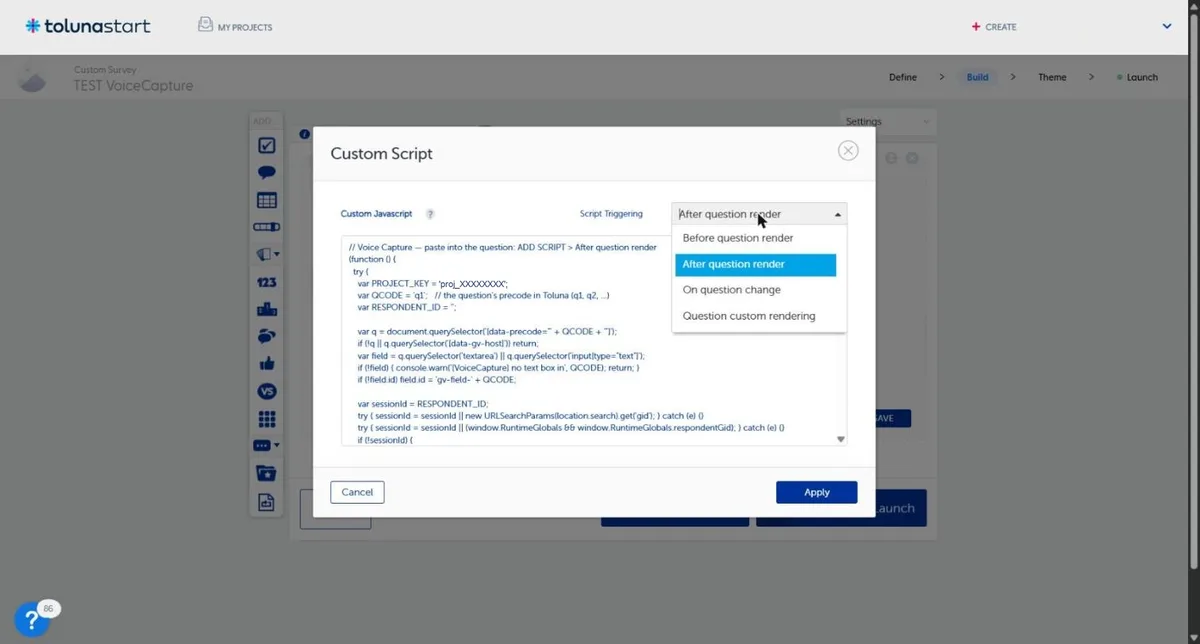
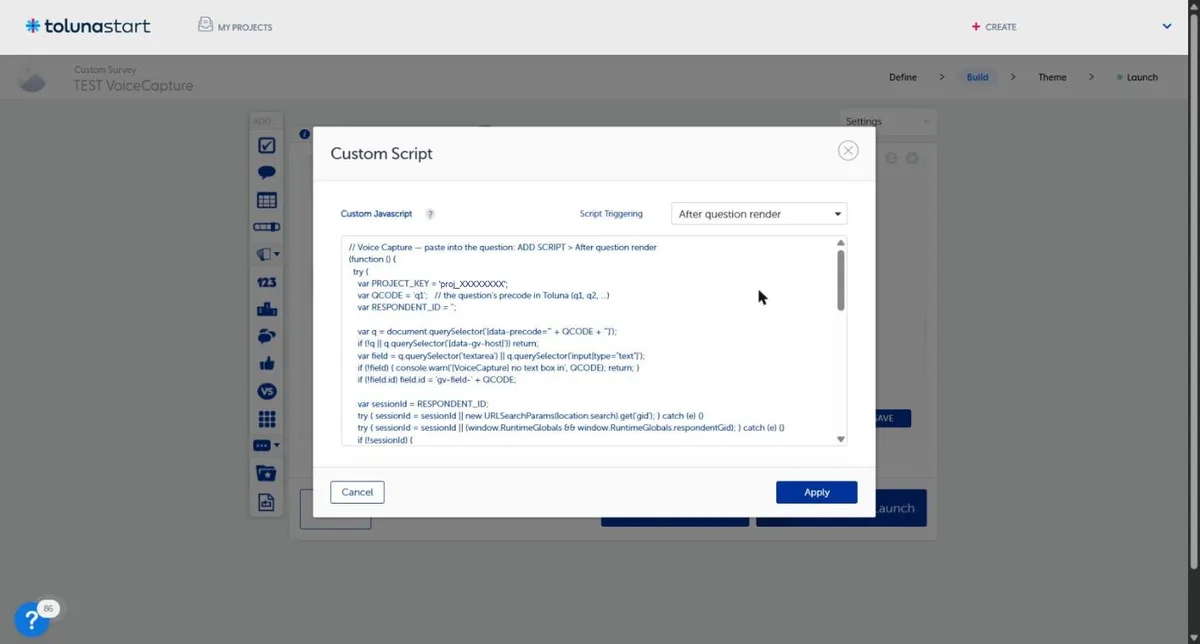
In the Toluna Start editor, open the open-ended question, click ADD SCRIPT and choose the After question render moment. Paste the block from your Voice Capture dashboard (the Toluna Start option in the setup guide) and save. It looks like this, with your own project key:
// Voice Capture — paste into the question: ADD SCRIPT > After question render
(function () {
  try {
    var PROJECT_KEY = 'proj_XXXXXXXX';
    var QCODE = 'q1';   // the question's precode in Toluna (q1, q2, ...)
    var RESPONDENT_ID = '';

    var q = document.querySelector('[data-precode="' + QCODE + '"]');
    if (!q || q.querySelector('[data-gv-host]')) return;
    var field = q.querySelector('textarea') || q.querySelector('input[type="text"]');
    if (!field) { console.warn('[VoiceCapture] no text box in', QCODE); return; }
    if (!field.id) field.id = 'gv-field-' + QCODE;

    var sessionId = RESPONDENT_ID;
    try { sessionId = sessionId || new URLSearchParams(location.search).get('gid'); } catch (e) {}
    try { sessionId = sessionId || (window.RuntimeGlobals && window.RuntimeGlobals.respondentGid); } catch (e) {}
    // ...a generated key if neither exists, then the widget is mounted above the box
  } catch (e) {
    console.warn('[VoiceCapture]', e);
  }
})();
Three details decide whether it works:
- Plain JavaScript, no <script> tags. Toluna runs the ADD SCRIPT box as code. A
<script>tag around it makes the browser throwSyntaxError: Unexpected token '<'and nothing appears. - Not in the question text. Toluna’s question-text editor removes scripts when it saves, so a block pasted there silently disappears.
- QCODE must match the question. Toluna’s answer box has no id of its own, so the script finds it through the question’s code (
q1,q2…). For voice on several questions, paste the same block on each one and change onlyQCODE.
![Toluna Start question header reading Question 01 [q1] - Open End](/blog/toluna-start/1-question-code.webp)
Step 2 — Test it with the test link
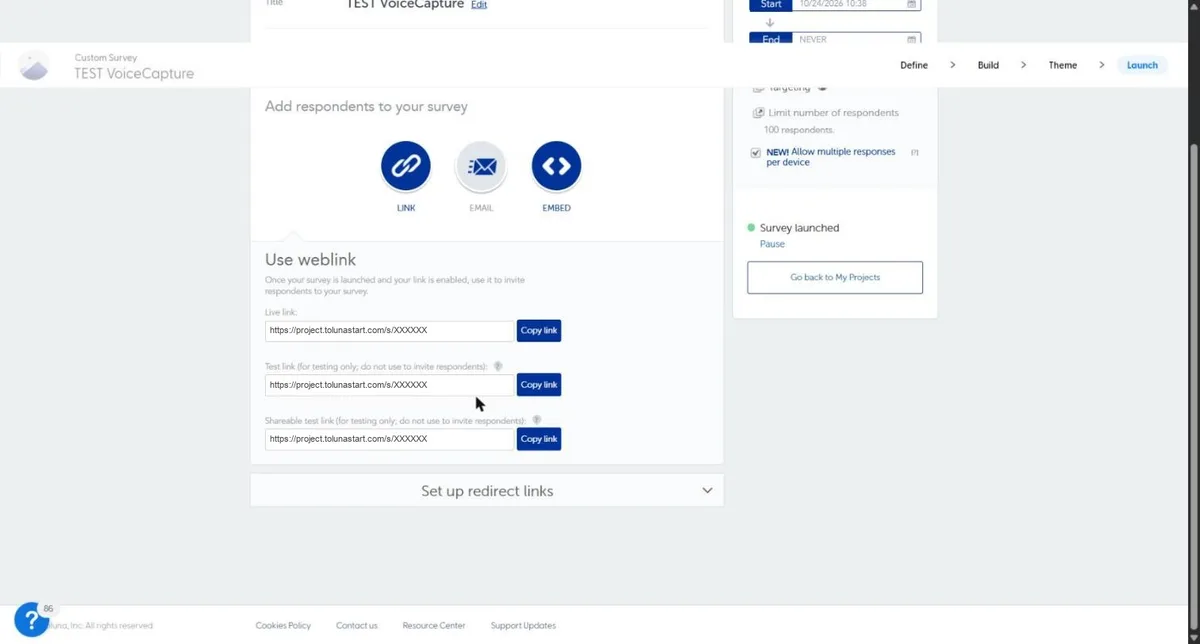
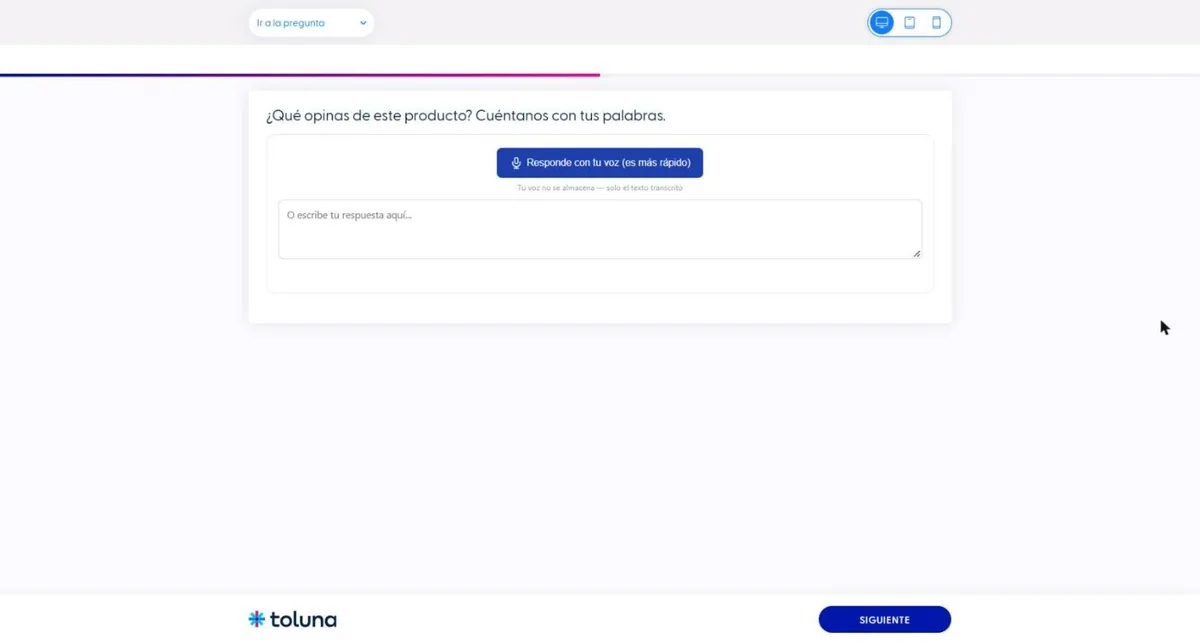
Toluna runs question scripts in Preview and in the test link, so you can check everything before launching. Open the test link and add ?gid=TEST01 to the end of the URL (or &gid=TEST01 if it already has parameters): that gives your test respondent a key you can recognise later. On the voice question you should see the microphone above the answer box. Record ten seconds, wait for the transcript to appear in the box, move on and finish the survey.
Step 3 — Confirm the transcript is in your Toluna data
This is the check that settles it, and it takes a minute. Open Analyze in Toluna Start and look at the voice question: the transcript should be listed among its answers. If the respondent corrected the text before moving on, Toluna keeps the corrected version, which is the one they submitted. The Voice Capture dashboard keeps its own copy, with the question code, the respondent key, the recording length and whether the answer was spoken or typed.
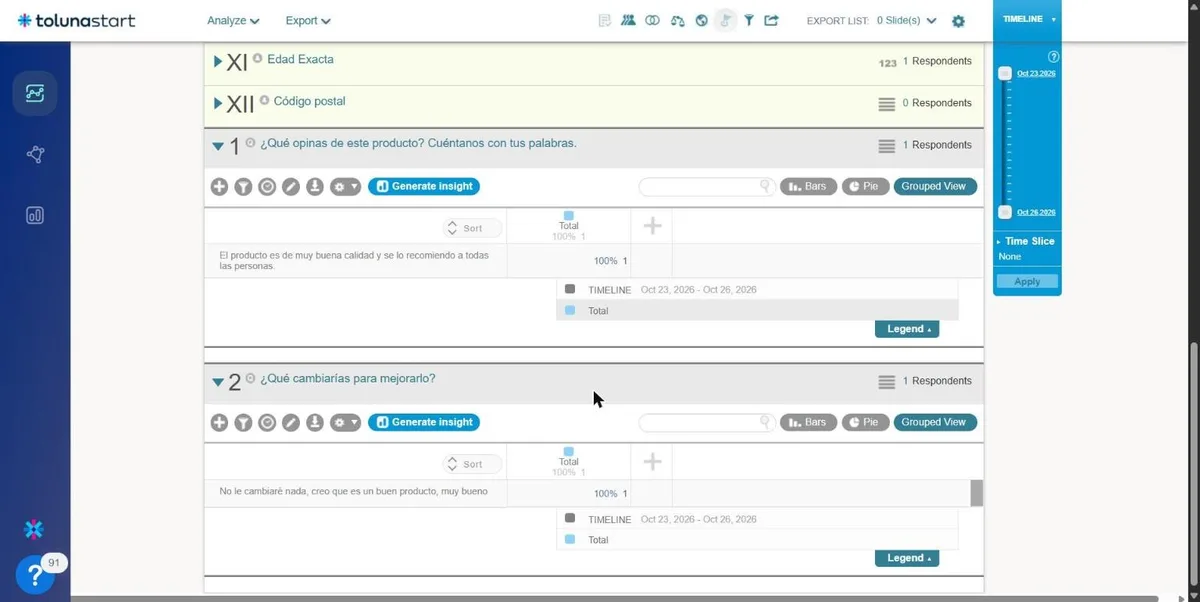
Do not take the microphone appearing as proof. A widget that records but cannot find the answer box would still show a transcript on screen; only the answer in Analyze tells you the data arrived.
How the respondent key works
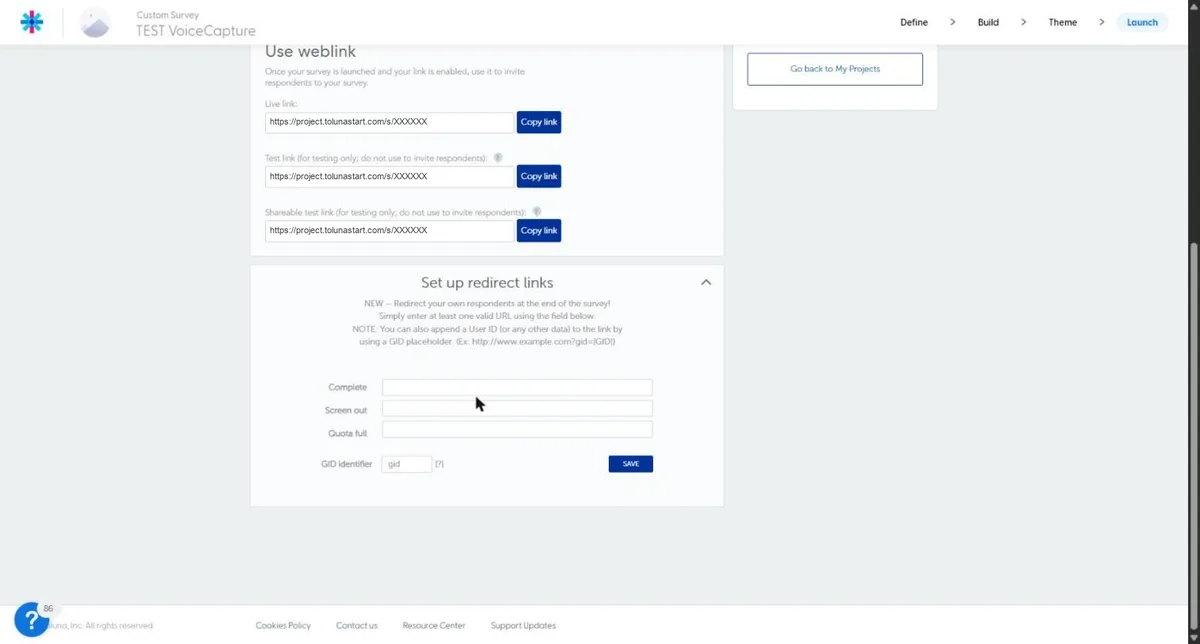
Every response carries a respondent key, so all the answers one person gives across your voice questions stay together in Voice Capture. The script takes it from the gid parameter of the survey link, which is the same respondent id Toluna puts in its Complete, Screen out and Quota full redirects. Without a gid, it uses Toluna’s own respondent id for the session, and failing that a key that lasts for the whole survey in that browser tab. For most studies the key barely matters, because the transcript already travels inside Toluna’s data as the answer itself.
Frequently asked questions
Does Voice Capture replace QProbe?
No. QProbe asks a follow-up when a typed answer is thin; Voice Capture gives the respondent a faster way to give the first answer. They solve different moments of the same question. We have not tested them together on one question yet.
Is the audio stored?
No. The recording is processed in memory and discarded; only the text transcript is kept, on EU-hosted infrastructure. The data handling page lists the transcription providers and the flow.
Does it work with the Toluna panel?
The script runs in the survey page itself, which is the same whoever the audience is. We have tested it with surveys sent to your own audience, not yet with a study fielded to the Toluna panel. If that is your plan, write to us before you launch.
Which languages does it transcribe?
36, including English, Spanish, Portuguese, French and German. Set the language in your Voice Capture project to the language of the fieldwork.
What does it cost?
Voice Capture is sold in one-time credit packs that never expire, and the Free Trial includes 250 credits. Each transcribed spoken answer uses one credit. Current packs are on the pricing page; Toluna Start’s own costs are unchanged.
What we have tested, and what not yet
- Tested: two multi-line open ends in one survey, spoken and typed answers, Preview and test link, the transcript in Analyze, the respondent key from
gid. - Not yet: a study fielded to the Toluna panel, mobile browsers, single-line open ends, Toluna’s export files, and QProbe or SmartCloud running on a voice answer.
The copy-paste reference, with the prerequisites and troubleshooting list, is on the Toluna Start integration page. If you are comparing platforms, which survey platforms support voice responses puts Toluna Start next to the others, and how to write open-ended questions covers the wording that gets longer answers.
Ready to add voice to your surveys?
Start free — no credit card required. Setup takes 2 minutes.
Try Voice Capture Free